
Photoroom: AI Photo Editor
Photoroom AI Photo EditorPhotography
4.718.26K Reviews
- Version
- 2026.46.02
- Installs
- 100.00M
- Age Rating
- Everyone
Screenshots





Our Review of Photoroom: AI Photo Editor
 Analysis by Appyee
When I need a photo to look ready for a listing or a social post, I want to get from a messy original to a clean image without opening a desktop editor. That is the job I reach for Photoroom: AI Photo Editor to do: isolate the main subject, tidy up the presentation, and make a version I can pass along or publish. It is a photography app from Photoroom AI Photo Editor, and its focus is practical rather than mysterious: spend less time cutting around an object and more time deciding how the finished image should look.
From a camera roll photo to a finished image
I start this section with the source photo, because the quality of the final cutout depends as much on the input as on the editing. I’ll cover how I choose a useful image, check the subject’s edges, and decide on a background before polishing anything; that setup makes the later choices about consistency and sharing much easier.
Start with a photo that gives the editor a fair chance
The app is easiest to judge when the source image has a clear subject. A small product photographed against a crowded table, for example, is a more useful test than a dark, blurry picture where the object blends into its surroundings. I try to keep the subject well lit and fully in frame. That simple choice tends to make the automatic separation look cleaner and reduces the amount of repair I need to do afterward.
Once the image is open, the background-removal step is the main shortcut. Instead of carefully tracing every edge by hand, I let the app identify the subject, then inspect the outline before moving on. Hair, transparent objects, thin straps, and reflective surfaces are the places where automated cutouts can look less convincing. Zooming in to check those edges before choosing a new backdrop is a worthwhile pause, especially if the image will be used as a product listing rather than a casual story post.
Choose the destination before polishing the image
After the cutout, I find it helpful to decide where the image is going. A plain light background can make a handmade item feel clear and shop-ready; a colored scene may work better for a social post where the goal is to catch someone’s eye. The app offers replacement scenes and colors, so I can compare a few directions without rebuilding the cutout each time. I avoid choosing a background just because it looks attractive on its own: if its lighting, color, or visual weight fights with the subject, the result feels pasted together.
A useful small-business workflow is to photograph several items in similar lighting, edit each one against a consistent background, and review the set side by side before publishing. Matching the images matters more than giving every item a different dramatic treatment. For a one-off personal post, I might be looser, but consistency helps a shop page feel deliberate. The same idea works for a simple menu, a craft fair announcement, or a profile graphic assembled from a portrait and text.
Make restrained edits, then hand the image off
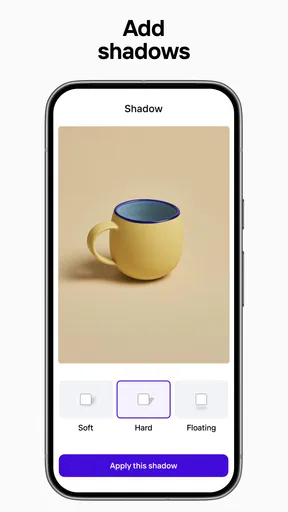
The editing tools cover brightness, contrast, and saturation, along with text, stickers, filters, background blur, and light and shadow adjustments. I usually make small corrections rather than pushing every slider: a stronger contrast can make an object stand out, but it can also erase subtle texture that tells a buyer what the item is really like. Text is most useful when it adds information that belongs on the image, such as a short label, rather than competing with the product itself.
Templates are handy when I need a quick starting point, but I still check the crop and spacing instead of treating the first layout as finished. Before sharing or using an image elsewhere, I look at it at a smaller size as well as full screen. Tiny edge halos can disappear when zoomed in and become obvious in a thumbnail, while crowded text can be readable on a phone held close but hard to scan in a feed. That final check is a simple way to catch problems before the image leaves the app.
Who gets the most from it—and where it can fall short
With a 4.7 average from around 3.8 million ratings and over 100 million installs, Photoroom is clearly a widely used option, but popularity does not make it the right editor for every job. I think it suits sellers, makers, and frequent social posters who often need isolated subjects, repeatable product images, or quick visual variations. It is also approachable for someone who finds layer-based desktop software intimidating. The free app gives casual users room to try the workflow, while in-app purchases range from $5.99 to $249.99 per item, so I would check the offered purchase carefully before committing to a paid option.
If I were retouching a portrait with delicate skin work, building a complex composite from many layers, or preparing an image that needs exact color control, I would choose a more specialized editor. A general photo editor can be better for broad adjustments, and a desktop tool gives more hands-on control when a cutout edge must be perfect. Photoroom’s advantage is speed around subject isolation and presentation, not replacing every kind of photo software. It is rated for Everyone, has been available since December 16, 2020, and version 2026.06.04 requires Android 10 or later; those details make it easier to judge whether it fits your device and household use.
In an everyday example, imagine I have taken a quick picture of a ceramic mug for a small online shop. I remove the busy kitchen background, inspect the handle and rim, choose a quiet backdrop, and make a modest brightness adjustment so the glaze still looks true. Then I add a brief label only if the image needs it, compare it with the other product photos, and send the finished version to the person handling the shop page. The handoff is smoother when I agree on the background and crop first; otherwise, I can spend time making a polished image that does not match the rest of the listing.
That workflow also explains the main trade-off. Automation saves the tedious first pass, but it does not remove the need for judgment. A cutout can be technically neat and still look artificial if the replacement scene implies the wrong lighting or scale. When the subject is difficult, I would rather use a simpler background than disguise a rough edge with extra effects. Photoroom is most convincing when the edit supports the object instead of drawing attention to the editing.
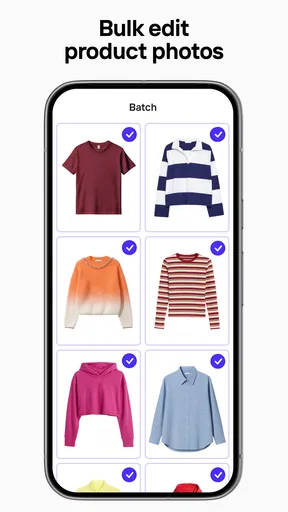
For a quick social graphic, I might use a template and text, then check that the message remains readable at thumbnail size. For a batch of products, I would keep the visual treatment consistent and edit one image as a reference before working through the rest. That is a practical way to avoid discovering late in the process that a chosen backdrop or color treatment does not suit the whole set. The app is useful for creating variations, but I would still keep the original photos untouched so I can change direction later.
Compared with the usual all-purpose mobile editors, this app puts the cutout-and-background workflow much closer to the center. That makes it quicker when the job is a product image or a social post built around one subject. A conventional editor may offer more freedom for detailed retouching and layered compositions, but often asks for more manual work. I would choose based on the task: use Photoroom when speed and a clean subject-focused layout matter most, and switch tools when precision retouching or a complex visual build is the real goal.
It is also worth deciding what “finished” means before editing. A marketplace image should show the item honestly, without a dramatic filter changing its apparent color; a playful post can tolerate more style. I try to compare the edited result with the source at the end, not just to admire the new background. If the product looks different from what someone will receive, the polish has gone too far. That check is especially useful for clothing, ceramics, and anything whose surface or color is part of the buying decision.
Getting Started with Photoroom
First things first, downloading the app is a breeze. Whether you're on Android or iOS, you can find Photoroom in your respective app store. Once installed, you're greeted with a clean interface that's super easy to navigate. No complicated menus, just straightforward options that make sense even if you're not a tech whiz.
Features That Make Your Photos Shine
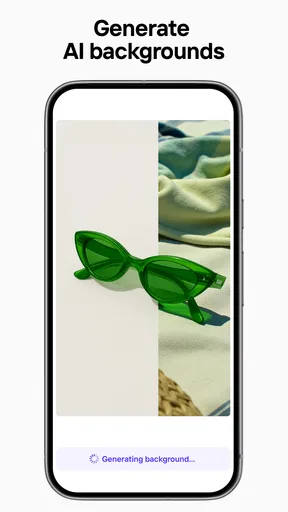
One of the standout features of Photoroom is its AI-powered background removal. Seriously, it's like magic. You take a picture, and the app automatically isolates the subject, removing the background with surprising accuracy. This is perfect for when you want to create professional-looking product photos or eye-catching social media posts.
Once the background is gone, you can replace it with a variety of different scenes or colors. Whether you're going for a clean white background or something more vibrant, the choice is yours. I found this especially useful for sprucing up my Instagram feed.
The Editing Toolbox
Photoroom doesn't stop at backgrounds. It offers a robust set of editing tools that let you adjust brightness, contrast, and saturation. Plus, you can add text and stickers to personalize your photos further. The app even includes a selection of pre-set templates for quick edits, which is a lifesaver when you're in a hurry.
- Background blur for artistic depth
- Filters to set the mood
- Light and shadow adjustments
These features are intuitive and don't require any prior editing knowledge. Everything is labeled clearly, so you know exactly what each tool does.
Why It Stands Out
In a sea of photo editing apps, Photoroom stands out for its ease of use and effectiveness. The AI capabilities are genuinely impressive and save a ton of time compared to manual editing. Plus, the app’s performance is smooth; I didn’t experience any lag or crashes, even when editing high-resolution images.
Another great aspect is the app's accessibility. While it offers in-app purchases for premium features, the free version is quite generous. You can do a lot without spending a dime, which is perfect if you're just starting out or if you're a casual user.
Final Thoughts
Overall, Photoroom: AI Photo Editor is a fantastic choice for anyone looking to enhance their photos quickly and easily. Whether you're a small business owner needing product shots or just someone who loves sharing stunning pictures online, this app has you covered. Its user-friendly design and powerful AI tools make it a must-have in your digital toolkit.
So, if you're ready to take your photo game to the next level, give Photoroom a try. It might just become your new favorite app, just like it did for me!
My recommendation is to try it first on an image that matters little, then use what you learn on the listing, post, or announcement you actually care about. That gives you a feel for how its automatic cutout handles your usual subjects and whether its templates match your style, without risking an important image. If your regular edits begin and end with removing a background and making a clean composition, it can be a very convenient part of your routine. If you need painstaking retouching or total control over every layer, keep a more hands-on editor nearby. For the job it is built around, I find it a fast, approachable choice—as long as I still give the final image a careful human check.
Privacy and Permissions
See what permissions an app requests and how it handles your data.
- Photos/Media/Files
- read the contents of your USB storage, modify or delete the contents of your USB storage
- Storage
- read the contents of your USB storage, modify or delete the contents of your USB storage
- Camera
- take pictures and videos
- Microphone
- record audio
- Wi-Fi connection information
- view Wi-Fi connections
- Other
- view network connections, full network access, run at startup, reorder running apps, control vibration, prevent device from sleeping, read Google service configuration
Verdict
Strengths of Photoroom: AI Photo Editor
- Easy to use with intuitive interface.
- Offers a wide range of editing tools.
- Quick background removal feature.
- Supports high-resolution exports.
- Frequent updates with new features.
Limitations of Photoroom: AI Photo Editor
- Limited free version capabilities.
- Some features require premium.
- Occasional app crashes reported.
- Can be resource-intensive on devices.
- Requires internet for optimal use.
Similar Picks in This Category
View All
Google Photos
Google LLC4.4

Gallery
Google LLC4.2

Picsart AI Photo Editor, Video
PicsArt, Inc.3.9

B612 AI Photo&Video Editor
SNOW Corporation4.1

BeautyPlus-Selfie Photo Editor
PIXOCIAL TECHNOLOGY (SINGAPORE) PTE. LTD.4.5

Remini - AI Photo Enhancer
Bending Spoons4.1
Frequently Asked Questions
What is Photoroom: AI Photo Editor and what features does it offer?
Photoroom: AI Photo Editor is a cutting-edge app designed to simplify photo editing with artificial intelligence. It offers features like background removal, professional-quality templates, and advanced retouching tools. The app is widely used for creating stunning visuals for social media, e-commerce, and personal projects, making it a versatile tool for both amateurs and professionals.
Is Photoroom suitable for beginners, or is it more for professional use?
Photoroom is designed to cater to both beginners and professionals. Its intuitive interface and AI-powered tools make it easy for novices to navigate and create high-quality images. At the same time, it offers advanced features like batch editing and custom backgrounds that professionals will find indispensable for their creative needs.
Does Photoroom require an internet connection to function?
While some basic features of Photoroom can be used offline, an internet connection is required for accessing its full range of capabilities. Online access allows the app to utilize cloud-based AI processing for tasks like background removal and offers regular updates and new templates to enhance your editing experience.
Are there any in-app purchases or subscription fees associated with Photoroom?
Photoroom offers a free version with essential features, but for more advanced tools and ad-free usage, users can opt for a subscription. The premium version includes perks like high-resolution exports, batch editing, and exclusive content, providing value for users who require more comprehensive editing capabilities.
How does Photoroom ensure user privacy and data security?
Photoroom is committed to user privacy and data security. The app employs robust encryption methods to protect user data and does not store personal images without consent. Users can review the app's privacy policy to understand how their data is handled, ensuring a secure editing environment.
